History Retrieval Optimization
This EIE provides multiple methods to retrieve historical data, at least one of which is optimized.
The non-optimized way to retrieve historical data uses static parameters like start date, end date, and index to define data retrieval. The number of messages retrieved by the non-optimized method might be greater than necessary and might include records you've already retrieved in a prior poll. This method for retrieving historical data ignores available cache information because the information is irrelevant to the non-optimized request. If a cache preexisted the non-optimized retrieval, the cache remains unaffected. If a cache did not preexist the non-optimized retrieval, the latest record retrieved is used to populate the cache.
The optimized ways to retrieve historical data take advantage of a host-side transaction cache that keeps track of one or two items, depending on EIE:
- The most recently retrieved record ID
- The most recently retrieved timestamp
The record ID and/or timestamp values are cached for each successful and partially successful retrieval. The cached information provides a starting point for subsequent optimized retrievals. Optimization is achieved by using this cached information to more quickly locate the new record(s) to poll and to reduce the number of messages by retrieving only the most recent historical data. A transaction cache is maintained for each historical data group ordinal. Cached transaction information is stored in the Device Definition Service (DDS) transaction as data group elements.
See the following subsections below for more information:
- Optimized Retrieval Method
- To Initiate a Get Latest Request Using a Data Group
- To Initiate a Get Latest Request Using a UIS Command
- To Clear the Cache for a Single Data Group/Ordinal
- To Clear the Cache for All Data Groups
For information about the data groups affected by historical data optimization, see Data Groups.
Optimized Retrieval Method
The optimized way to retrieve history data is called a Get Latest request. To "get latest" means to get history data that has been saved by the field device after the most recent raw timestamp cached by the host; it is the data you do not already have. Get Latest uses the latest successfully retrieved index record and raw timestamp combination as the point from which to collect history data in the next Get Latest request. This process ensures that, if properly used, you only get history data that has not already been retrieved in a prior poll. This method works in conjunction with Start Date and End Date parameters.
In the case of an initial poll (either the first poll of a device or after the cache is cleared), the latest successfully retrieved index record and raw timestamp combination are stored in the cache so that Get Latest optimization is available for subsequent polls.
Three Get Latest scenarios follow; each assumes that you are using the Get Latest option.
Scenario 1
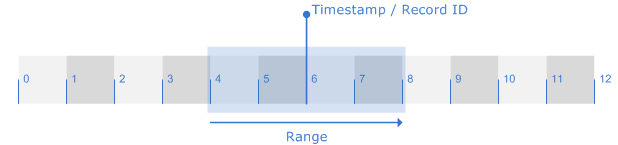
In this scenario, you request history data from a time window where the Start Date and End Date span the latest timestamp cached. The result is that only records that come after the latest timestamp and before or on the End Date (records 7 and 8) are retrieved and displayed. Records that come before the cache have already been retrieved. The cache is then updated to reflect the latest record retrieved (record 8).
|
Optimization Retrieval 1 |
Scenario 2
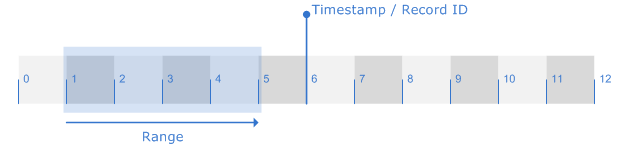
In this scenario, you request history data from a time window where both the Start Date and End Date are before the latest timestamp cached. The result is "No Data Available," which is returned because all available data has already been retrieved. The existing cache is left unchanged.
|
Optimization Retrieval 2 |
Scenario 3
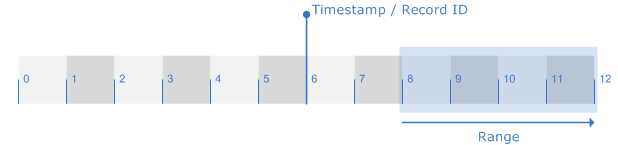
In this scenario, you request history data from a time window where both the Start Date and End Date are after the latest timestamp cached. The result is that only history data for the window specified (records 8 - 12) is retrieved. The cached timestamp is set to the last record retrieved (record 12). Data between the cached timestamp and the Start Date is ignored (record 7). You might use this option because you know data immediately after a latest timestamp is unreliable for some reason, so you want to ignore it but still get the latest reliable data and bring the cache up to date.
|
Optimization Retrieval 3 |
Note: When retrieving multiple history points for FloBoss 107/107IC devices using the "History Multiple Points Daily" (HistMultiD), "History Multiple Points Periodic" (HistMultiP) and "History Multiple Points Extended" (HistMultiE) data groups, since you can get unexpected results when changing the starting history point and number of points between requests, the Get Latest option is now disabled from the Data Group page of the device editor for these data groups. You can still issue Get Latest requests to retrieve multiple point history data using a UIS command. This helps to keep the results consistent since you can set up one UIS command per segment to retrieve all valid history points.
To Initiate a Get Latest Request Using a Data Group
Note: The following procedure is for a one-time poll. It is useful for testing purposes. For field deployment, schedule a UIS command to get latest.
- In the Device Definition Service (DDS), open the remote device you want to poll and click its Data Group page.
- Open the relevant historical data group and click Get from RTU.
- Select Get Latest.
- Specify retrieval parameters, like Start Date, End Date, and Max Records to Read. Different combinations of these parameters produce significantly different results. Max Records to Read limits the number of records to be retrieved in one request.
- Click OK.
To Initiate a Get Latest Request Using a UIS Command
- In the Device Definition Service (DDS), open the remote device you want to poll and click its UIS Commands page.
- Set up a UIS command to handle historical data retrievals.
- If available, activate the GetLatest command parameter (1=True, 0=False).
- If available, specify retrieval parameters, like Start Date, End Date, and Max Records to Read. Different combinations of these parameters produce significantly different results. Max Records to Read limits the number of records to be retrieved in one request.
- When you are finished defining the UIS command, click OK.
- If polling recurs on a regular basis, schedule polls in the Master Scheduling Service (MSS).
To Clear the Cache for a Single Data Group/Ordinal
Note: The following procedure does not have a regular operational use. It might be useful for testing and/or removing cache values that are suspected of being corrupt.
Note: This option is not available for all EIEs that feature historical data retrieval optimization.
- In the Device Definition Service (DDS), open the remote device you want to modify and click its Data Group page.
- Open the relevant historical data group and click Options.
- Click Clear History Transaction Cache. If the Clear History Transaction Cache is not visible, no transactions exist.
- If you are sure that you want to clear the cache for this data group, click Yes.
To Clear the Cache for All Data Groups
Note: The following procedure does not have a regular operational use. It might be useful for testing and/or removing cache values that are suspected of being corrupt.
Note: If you clear all caches using a UIS command, the cache values in each transaction of historical data groups are not reset; past transactions continue to display actual values. This is done for performance reasons so that each DDS transaction does not have to be updated. The driver ignores these cached values after the command has been issued.
- In the Device Definition Service (DDS), open the remote device you want to modify and click its UIS Commands page.
- Set up a UIS command to clear the cache.
- At the Component Type drop-down menu, select Clear All History Tx Info [CLRHSTXA], then click OK twice.
- On the UIS Commands page, highlight the newly added UIS command, then click Execute and Yes. Doing so clears the cache of every data group/ordinal combination for the selected remote device.


